March 10, 2026 – March 31, 2026
| MonMonday | TueTuesday | WedWednesday | ThuThursday | FriFriday | SatSaturday | SunSunday |
|---|---|---|---|---|---|---|
30March 30, 2026●(1 event) March 10, 2026 – March 31, 2026 |
31March 31, 2026●(1 event) March 10, 2026 – March 31, 2026 |
1April 1, 2026
|
2April 2, 2026
|
3April 3, 2026
|
4April 4, 2026
|
5April 5, 2026
|
6April 6, 2026
|
7April 7, 2026
|
8April 8, 2026
|
9April 9, 2026
|
10April 10, 2026
|
11April 11, 2026
|
12April 12, 2026
|
13April 13, 2026
|
14April 14, 2026
|
15April 15, 2026
|
16April 16, 2026
|
17April 17, 2026
|
18April 18, 2026
|
19April 19, 2026
|
20April 20, 2026
|
21April 21, 2026
|
22April 22, 2026
|
23April 23, 2026
|
24April 24, 2026
|
25April 25, 2026
|
26April 26, 2026
|
27April 27, 2026
|
28April 28, 2026
|
29April 29, 2026
|
30April 30, 2026
|
1May 1, 2026
|
2May 2, 2026
|
3May 3, 2026
|
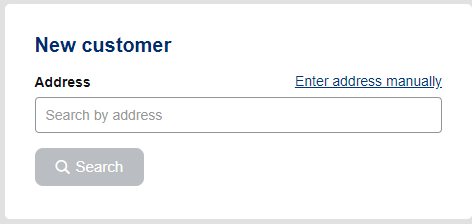
Enter your client’s address in the searchbar
Click ‘Search‘
Under ‘Mobility Services‘, click ‘Add‘
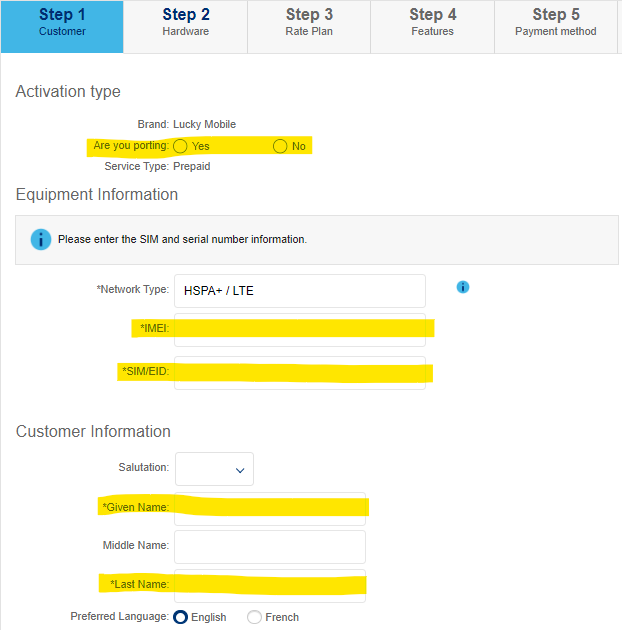
You only need to fill out the fields we have highlighted in yellow!
Are you porting: No
IMEI: 111111111111119 (thats fourteen 1s and one 9)
SIM/EID: Using your scanner, scan the long barcode on the back of the Lucky SIM
Given Name: The customer’s first name
Last Name: The customer’s last name
Residential phone #: The customer’s home phone number, or 111-111-1111
Email address: The customer’s email, or [email protected]
click ‘Next Step’
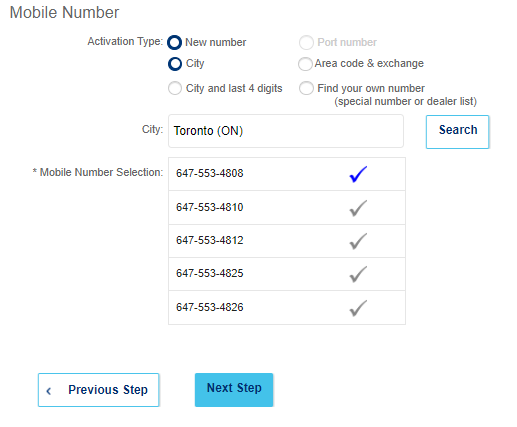
In the City field, enter the closest city
Click ‘Search’
Select one of the five numbers offered to you
Once your customer agrees to the number, click ‘Next Step’
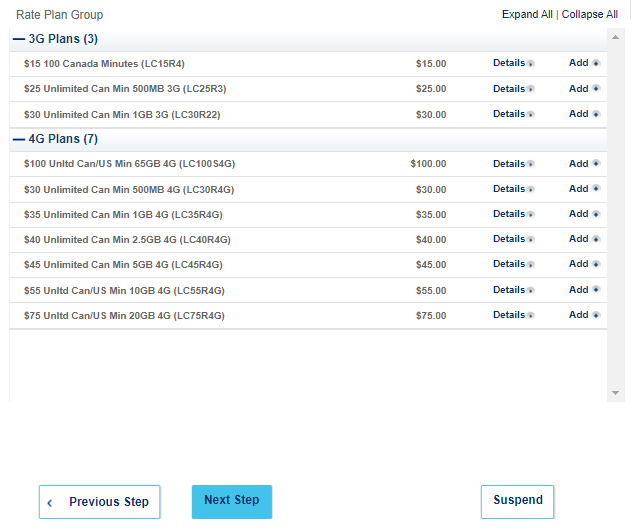
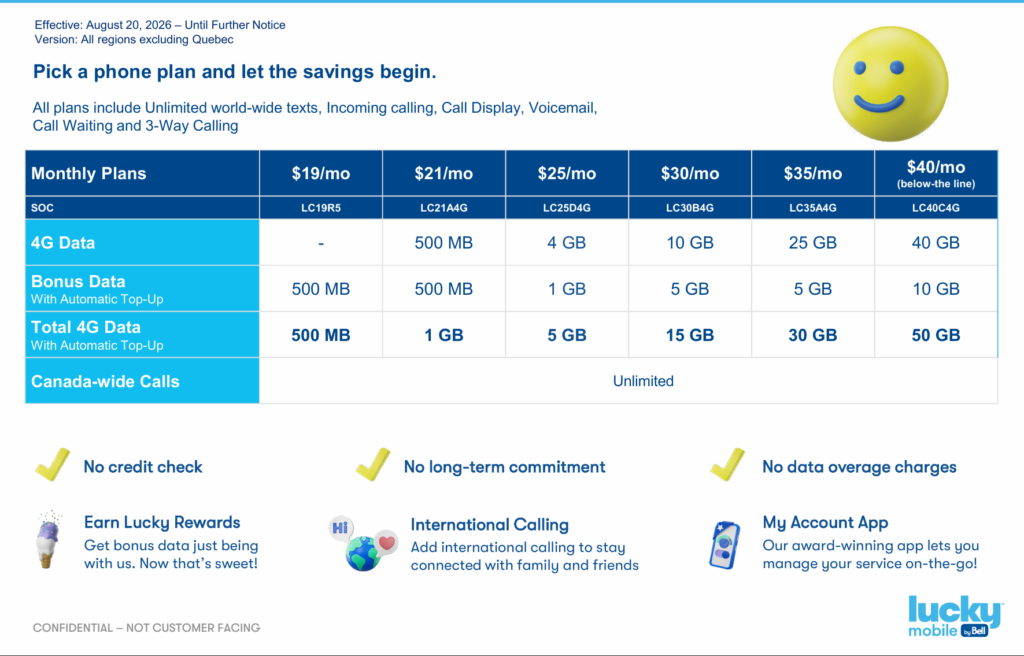
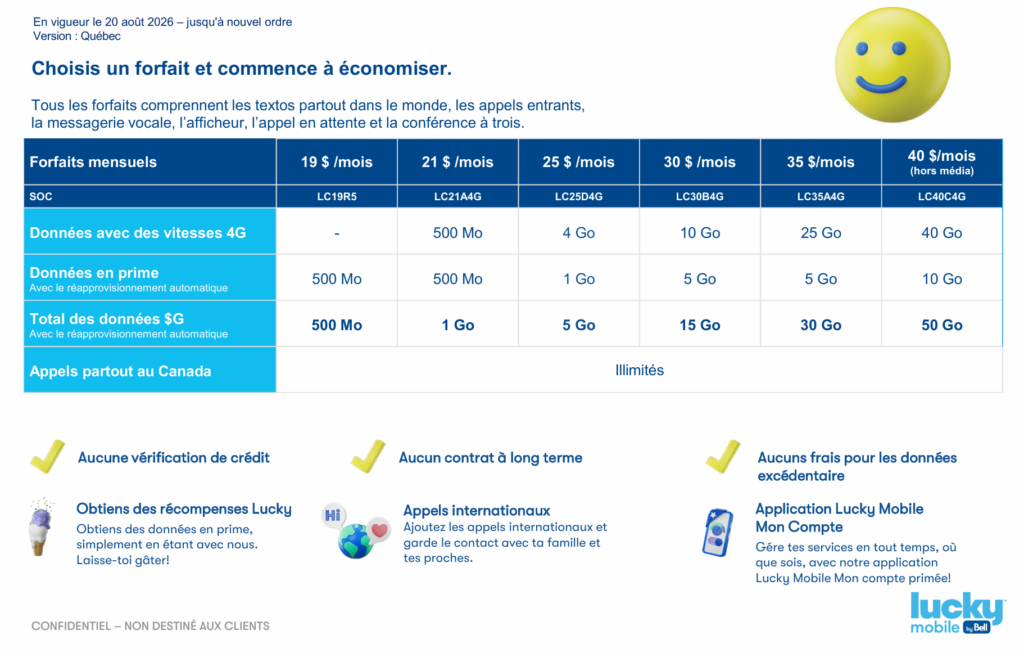
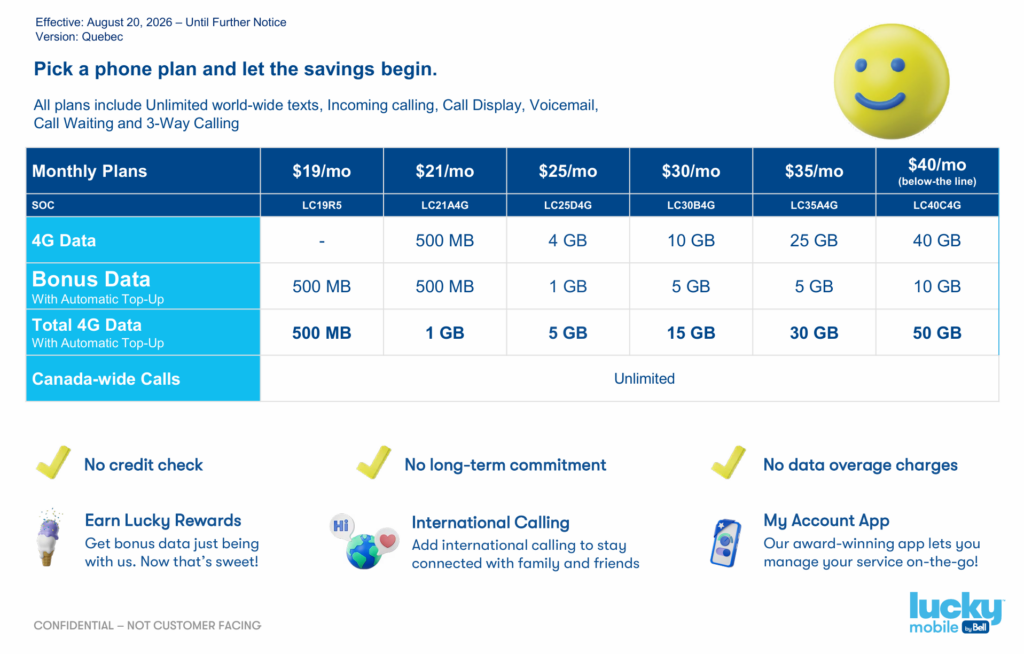
To help your customer decide on a plan, show them the Plan Grid!
Expand the section of your customer’s chosen plan (3G or 4G)
Click ‘Add‘ on the desired plan. You should see the word grey-out once added
Review the plan details with your customer and ask them to confirm their choice
Once your customer confirms the plan choice, click ‘Next Step’
Once your customer agrees to the number, click ‘Next Step’
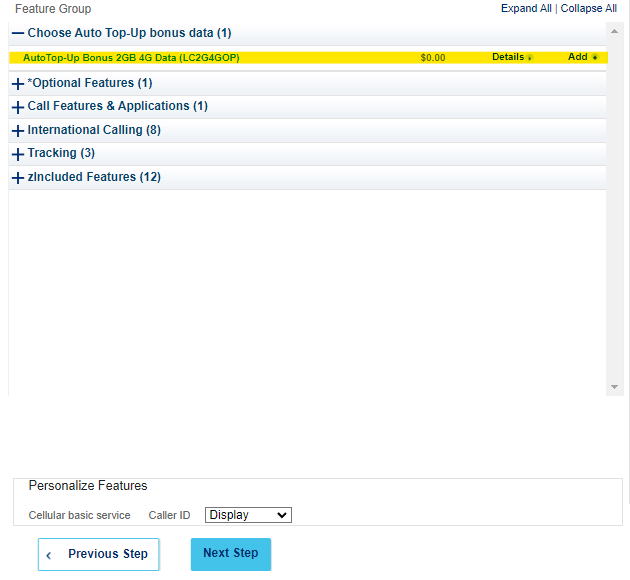
The main feature on this page is Auto Top-Up (highlighted yellow)
Auto Top-Up rewards customers with extra monthly data for providing a credit card on file. That credit card will be automatically charged the price of their plan every month.
If the customer wants Auto Top-Up, click ‘Add’
If the cusomer does not want Auto Top-Up, do not click anything
Once the above has been completed, click ‘Next Step’
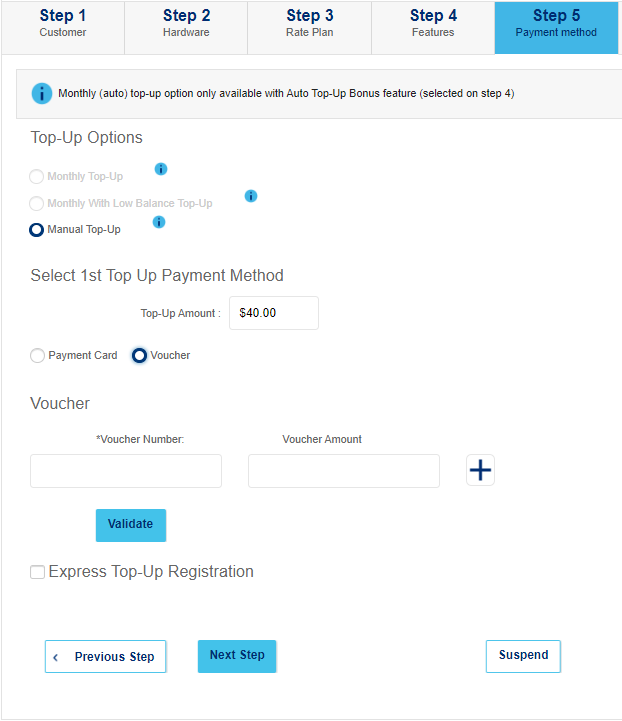
Select Voucher as payment method
Print voucher(s) equal to the price of the plan
(You can print vouchers from WebStore, if you have an account)
Enter the PINs of the vouchers under ‘Voucher Number’ (click the + if you have more than one to add)
Click ‘Validated’ to ensure the PINs are valid
Once the vouchers have been validated, click ‘Next Step’
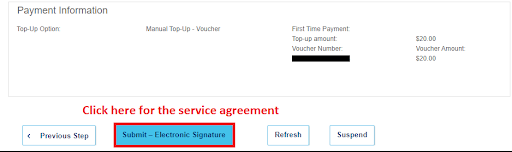
If all looks good, click ‘Submit – Electronic Signature’
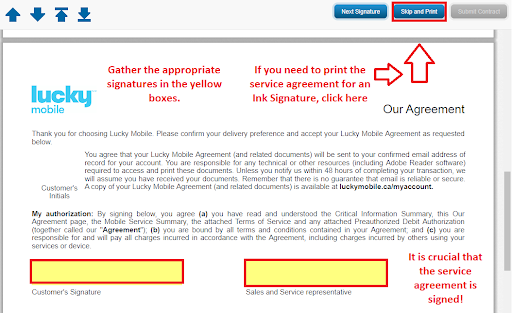
Sign digitally or click ‘Skip and Print’ for a physical copy
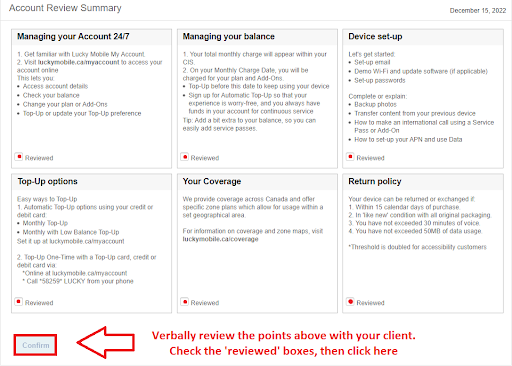
Check all the boxes, then click ‘Confirm’
Before attempting to activate the eSIM ensure that your customer’s device is eSIM compatable.
Lists (click here) of compatible devices can be found online
Enter your client’s address in the searchbar and click the right one from the autofill
Click ‘Search‘
On the new page, under ‘Mobility Services‘, click ‘Add‘
You only need to fill out the fields we have highlighted in yellow.
Are you porting: No
IMEI: The phone’s IMEI 2
(both can be found by dialing *#06#)
SIM/EID: the phone’s EID (can be found by dialing *#06#)
Once these are filled, click ‘Get SIM”.
Then fill:
Given Name: The customer’s first name
Last Name: The customer’s last name
Residential phone #: The customer’s home phone number, or 111-111-1111
Email address: The customer’s email, or [email protected]
In the City field, enter the closest city to your store’s location.
Click ‘Search’
Select one of the five numbers offered to you (blue check indicates selected)
Once your customer agrees to the number, click ‘Next Step’
To help your customer decide on a plan, show them the Plan Grid!
Expand the section of your customer’s chosen plan (3G or 4G)
Click ‘Add‘ on the desired plan. You should see the word grey-out once added
Review the plan details with your customer and ask them to confirm their choice
Once your customer agrees to the number, click ‘Next Step’
The main feature on this page is Auto Top-Up (highlighted yellow)
Auto Top-Up rewards customers with extra monthly data for providing a credit card on file. That credit card will be automatically charged the price of their plan every month.
If the customer wants Auto Top-Up, click ‘Add’
If the cusomer does not want Auto Top-Up, do not click anything
Once the above has been completed, click ‘Next Step’
Select Voucher as payment method
Print voucher(s) equal to the price of the plan
(You can print vouchers from WebStore, if you have an account!)
Enter the PINs of the vouchers under ‘Voucher Number’ (click the + if you have more than one to add)
Click ‘Validated’ to ensure the PINs are valid
Once the vouchers have been validated, click ‘Next Step’
If all looks good, click ‘Submit – Electronic Signature’
Sign digitally or click ‘Skip and Print’ for a physical copy
Check all the boxes, then click ‘Confirm’
(For any issues, contact Lucky port management at 1 (866) 907-4321)
Activate a new number (instructions in the ‘New Activation’ tab)
Make sure you take note of the new number.
Leave the customer’s original SIM in their phone.
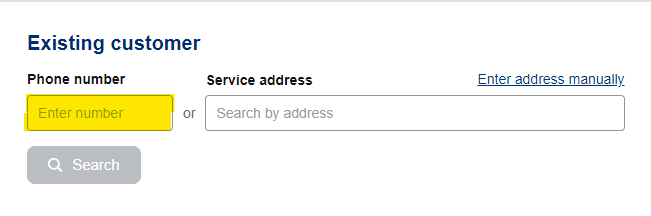
Under ‘existing customer’, enter the number for the SIM you just activated, then click ‘Search’
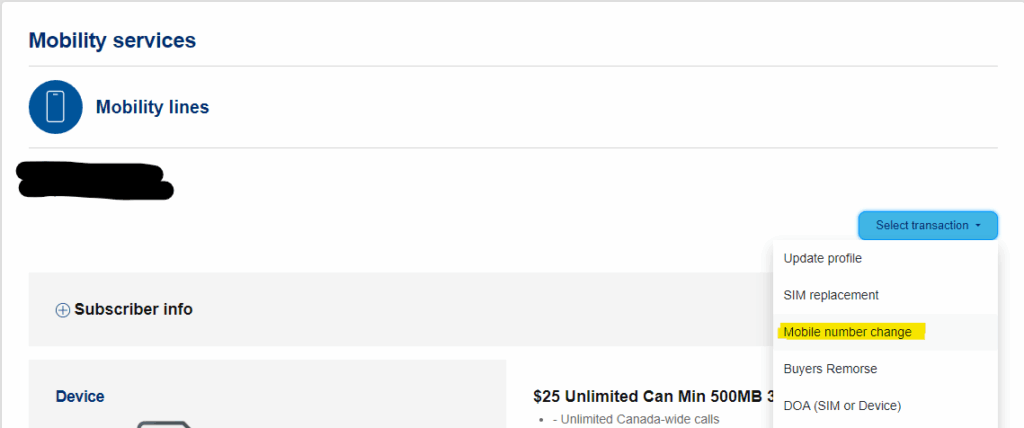
Once in the customer account for the Lucky SIM, expand the menu under ‘Select Transaction’ and click ‘Mobile number change’
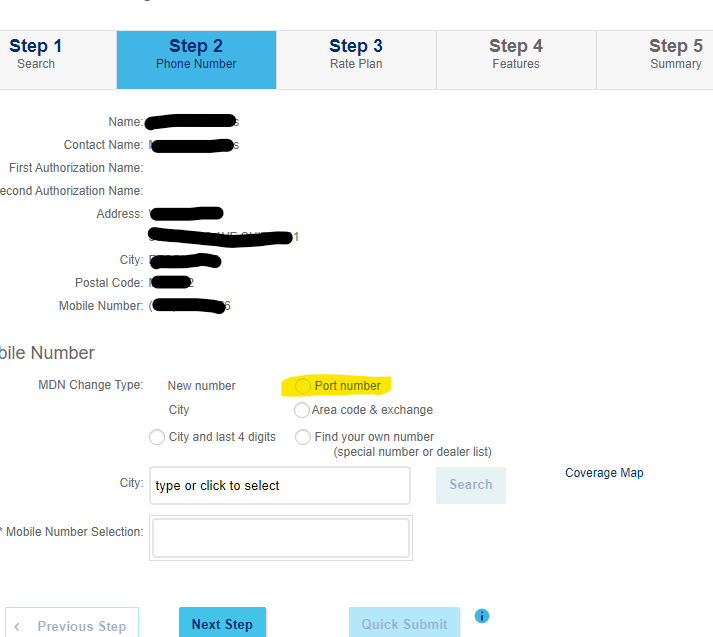
Under MDN Change Type, select ‘Port Number’ (highlighted yellow).
The webpage will reload with options different than the ones pictured.
Once this has happened, continue to Step 2
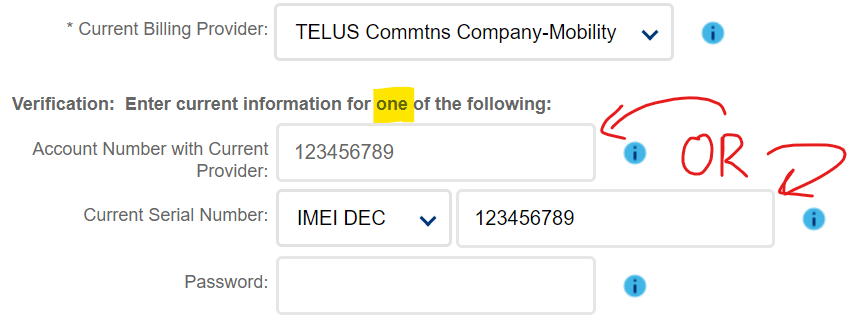
Enter ONLY ONE of the following:
Account number (from the previous carrier)
Current phone’s IMEI DEC (can be found by dialing *#06#)
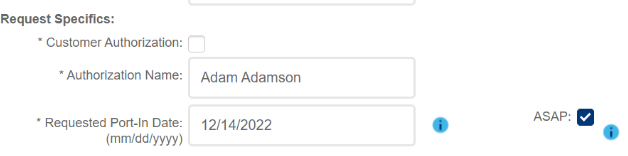
Check the Customer Authorization box
Under ‘Authorization Name’ enter the customer’s name (as it appears on their old account)
Check the ‘ASAP’ box
Your customer will receive a text message from their old carrier asking to authorize the port request.
Respond to the text with the appropriate message to approve
Once the customer has authorized the Port Over, you may continue through the steps and submit. Pay attention to the following warning messages, which indicate issues with the port request.
Once the request has been submitted and the port has been authorized via text, you may swap to the new Lucky SIM.
The port is now complete!
To complete these ports, you must call Lucky Port Management at 1 (866) 907-4321
Passwords for the Lucky Activation portal require a reset every 90 days.
If you fail to reset your password, your account will become locked.
If your account is already locked, please contact us using the info at the side of the page.
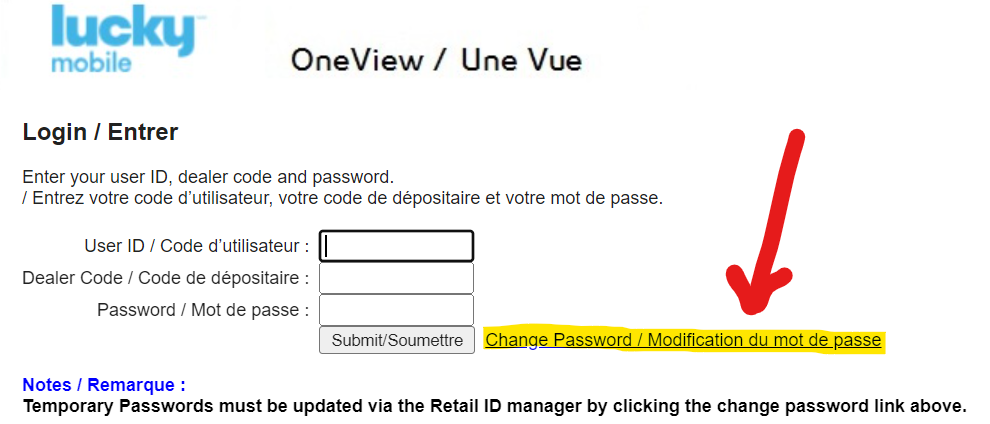
Launch OneView.
Click ‘Change Password / Modification du mot de passe’
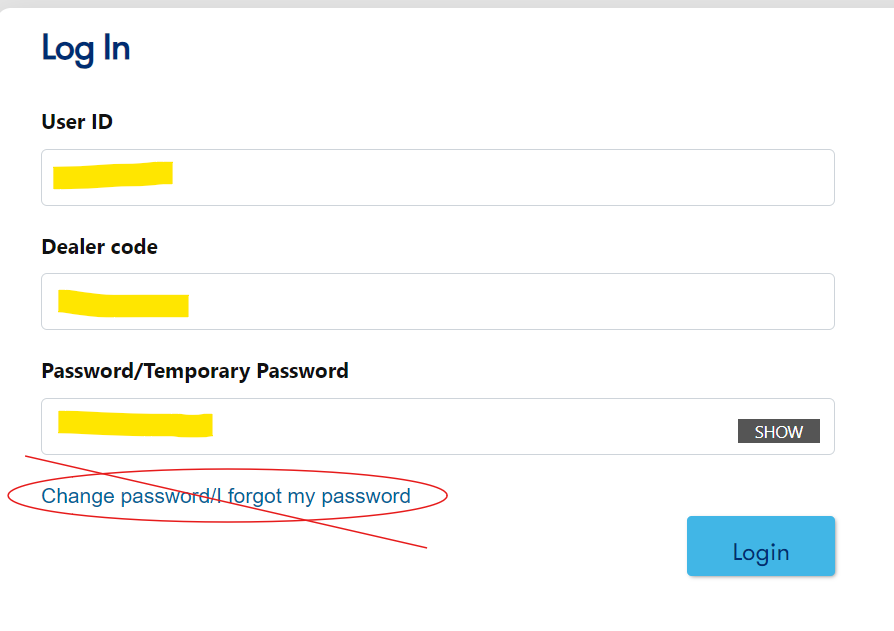
On the new page, do NOT click ‘Change password/I forgot my password’.
Instead, enter your User ID, Dealer code, and current password in the proper boxes, then click ‘Login’
Enter your new password here.
The password must have…
Exactly 8 characters
At least 1 capital letter
Once your new password has been filled, click ‘Submit’ and your password will be updated.
Fixes both the ‘Access Denied. Only Authorized machines can access this site ‘ and the ‘Oops! ‘ error.
Close all browser tabs.
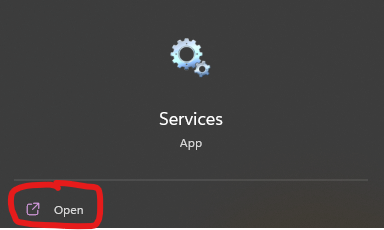
Press the Start button and search for ‘Services’.
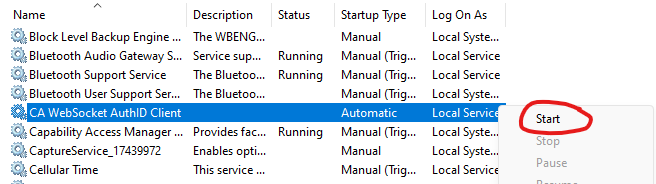
Search for ‘CA Websocket AuthID Client’.
Right click, and press Start.
You should be able to login to the portal after these two steps.
If you are still having issues, feel free to contact us for assistance!
Please submit a request using our Order SIMs form.
You can register your computer at https://rma.bell.ca/.
If you have not received an authorization code, please contact us.
From your phone
Dial 1-833-885-8259 and follow the instructions from the menu. Once the voucher is redeemed their account will be funded
From customer’s phone
Dial *111 and follow the instructions from the menu.Once the voucher PIN is redeemed their account will now be funded